Monday, July 5, 2010

Lose Your Phone Book No More

Share

I have heard a lot of horror stories people losing their mobile phones either left at public places or by criminal action, or simply your phones had "heart attack" and just died and refuse to revive from its state. It just happened to my in-law and friend, my in-law's phone suddenly just died when she needed to contact her client while the latter got his Blackberry spilled with water and got short-circuit.

Losing a phone is not as hurt as losing all the data inside, especially your phone book. Your list of vital clients, their numbers, emails, addresses can be very hazardous for your health (sorry for the bad pun :P ) or your business. Recovering from the dead phone will not be easy either, normally, it involves flashing ROM which means erasing all the data a.k.a restore to factory settings. So before it happens, prepare yourselves. Here is few options you can choose:
  1. Sync your Blackberry via Desktop Manager with your desktop organizer app
    I use Windows and Outlook so synchronizing my contacts, tasks, memos, and calendars are part of my daily backup. Just plug my Blackberry Storm, turn on Desktop Manager and it will sync automatic. Backing up all my important organizer data.
    You can setup one by following this step by step:


    1. Open your Blackberry Desktop Manager and click Synchronize
    2. Click Configure>Synchronization
    3. Click Synchronization to enter the setup wizard
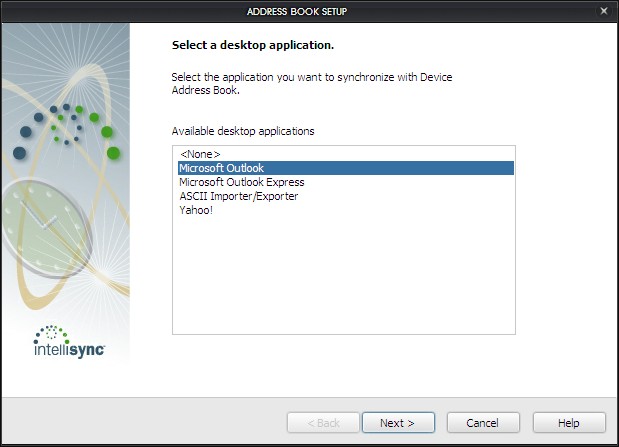
    4. At the wizard you will ask what data to synchronize. There are Calendar, Memopad, Address Book, Tasks or basically your all organizer data. Click on the data you want to setup then click Setup.
    5. You will ask to put your organizer desktop application you want to sync to and the direction. I choose one way from device to desktop for my address book as I always add/edit/delete from my Blackberry.

    6. After done with the wizard. Make sure you tick Synchronize organizer data and then click Synchronize to sync. If you want to sync every time you connect your Blackberry, tick Synchronize the selected items when your device is connected to the Blackberry Desktop Manager
    7. That's all, now every time you connect it will sync your organizer data to your desktop application
  2. Wireless Synchronization to Your Google Account
    If you use Gmail as one of your email, this could be the easiest way to backup your contacts.


    1. In your Blackberry, go to Setup>Email Settings
    2. Log in to your email settings, if you already have a user
    3. Choose which gmail account you want to sync and open it
    4. There is an option for Synchronization Options, tick 
    5. Save it
    It take a while before the sync kicking, you can read further from KB19270
  3. Backup Regularly with Desktop Manager
    If you are not using any Desktop Organizer Application and not using GMail, you still can backup your contacts but it is required some discipline to make sure it is up-to-date


    1. Open Desktop Manager and connect your Blackberry
    2. Click Backup & Restore
    3. Click Backup
    4. Choose where you want to save it & click Save
  4. Use 3rd-party Apps
    There are 3rd-party apps that offer backing up your contacts as one of the features. You can use free services like from smrtguard.com they provide backup all your Blackberry data OTA with reasonable price. Or you can search in appworld to find alternatives for backup your contacts.

    If you are in Indonesia and happened to use Indosat, they bundle smrtguard and name it i-guard.
Do it now :)

Saturday, July 3, 2010

Tips: Autotext Bahasa Indonesia

Share

For those who get Blackberry Storm and Odin as their Blackberry and primary language is not English, SureType is a no no. You will get frustrated or worse throwing your Blackberry as typing can be as pain as hell. If you use Indonesian as primary language worry no more, as you can inject Autotext that is built by someone (anyone know who the first one build this?) into your Blackberry. Immediately, you will fall in love all over again with SureType as it is the best one-handed operation typing.
Here is how

  1. Make sure you backup your Blackberry using Blackberry Desktop Manager before performing this. Here is how to backup: 
    1. Connect your Blackberry with your Desktop
    2. Open Blackberry Desktop Manager
    3. Click Backup and Restore
    4. Click Backup
    5. Choose where you want to save in your Desktop
  2. After your backup is complete, click Advanced (in Backup and Restore) and click File>Open
  3. Choose the autotext IPD you have downloaded and then choose the database you want to transfer to your Blackberry.
  4. Click  wait until it finishes
  5. Done
You can download the following autotext:
Now you can type much much faster with SureType :D happy trying.
For Storm 1 users, I recommend using autotext 5k words as memory limitation it has and work more words as you use it.

Friday, July 2, 2010

Tips: How to Re-Arrange Your Blackberry Application

Share

For those who just get a Blackberry and find you waste a lot of time to navigate to your Blackberry Messenger , Yahoo Messenger, MSN Messenger, AIM, Gtalk or even ICQ (anybody still use ICQ? I still remember my ID though :D ) . Or open your email, you just set, way down so you need to scroll to the bottom. You are starting to get frustrated and your thumb is aching of scrolling, tapping. Here is how to re-arrange your Blackberry Application so the most frequent/ your favorite applications are placed conveniently, just a thumb away.
Re-arrange items:

  1. Choose the application icon you want to move. For this example, I want to move my SMS & MMS application from bottom of the screen to the top of my screen
  2. Press  and choose Move
  3. Now, scroll up to choose new position. afterwards just hit again and choose complete move
Move your frequently used Blackberry Application to home folder:

  1. Go to where your application located. For example: I want to move my Blackberry Messenger to home folder. Currently, it is located in Instant Messaging folder
  2. Press  and choose Move to Folder and select Home to move to home page
  3. After you move the application to Home folder, normally it will located at the bottom. Just re-arrange it to put in other position
That's all. Happy trying :)

Thursday, July 1, 2010

Tips: Support World Cup Team with Mail Icons

Share

As the world cup reaching the end and all the qualified countries are preparing for next matches. Why don't you prepare yourself also with your Blackberry. Change your default email icons with rocking icons and support your country or your favorite.

Here is how

  1. Go to Options>Advanced Options>Service Book. Pick email you want to custom. CICAL or CMIME doesnt matter. Click on one of them.


  2. At the Service Record page, note down the UID number.
  3. You can do it directly from your Blackberry or using your PC. Here I use my windows. Enable your mass storage. Open your Device Memory then go to appdata/rim/bda/icons. If you don't see the folder appdata, you need to enable show hidden folders in the Folder Options. If you cannot find any folder mentioned after appdata, just create new folder and name it accordingly.
  4. Now under appdata/rim/bda/icons create a new folder and named it the save as your GUID No. Mine is GBISXAPC00S03. Afterwards, go to the folder and just paste from one of the picture below or you can create your own or download all pictures below here.


  5. rename the file to "1-73-70.png"
  6. for it to take effect, you can do either changing for another theme and change it again or restart your Blackberry
  7. For other emails, just repeat the step
The icons above are only for Storm 1 (Blackberry 9500, 9530) and Storm 2 a.k.a Odin (Blackberry 9520, 9550). Other Blackberry devices use other dimensions; Javelin (8900), Bold (9000), Onyx (9700) 80x80pixels, Gemini (8520) 52x52pixels.
Share yours here 
Hope you enjoy it

Saturday, June 26, 2010

Tips: Speed Up Your Blackberry Messenger 5.0

Share

Maybe this tips is a bit old but I found it quite recently at berryreview.com and it works. So I thought I will share it here. You just need to change small thing and you can notify slight improvement of your Blackberry Messenger (BBM) in individual chat or even in Blackberry Group (BBG). I found big improvement especially in BBG.
Here is how:
1. Go to your Blackberry Messenger. Press  menu, choose Options
2. Under Chats, you need to change Conversation Style to Standard. Bubbles and Stripes have the alternate colors between you and the other recipients with blue and White. So change it to Standard means no alternate colors.
3. Hit  and press Save

You should notice improvement over your chat. Give it a shot.
I found this tips from here

Saturday, June 12, 2010

Tips: Adjust Your Picture for Wallpaper

Share

I snap a lot of pictures with my Blackberry Storm since that is the handiest tool I always have around. But for several reasons sometimes the picture composition not as right as I thought to become wallpaper. And I'm not a fave of retouch, resize & crop my mobile pictures with image editor in my PC, as I'm lazy to copy, edit and move it back. But luckily Blackberry OS is smart enough so we can recompose the picture for wallpaper. The steps is very simple and no 3rd party app:

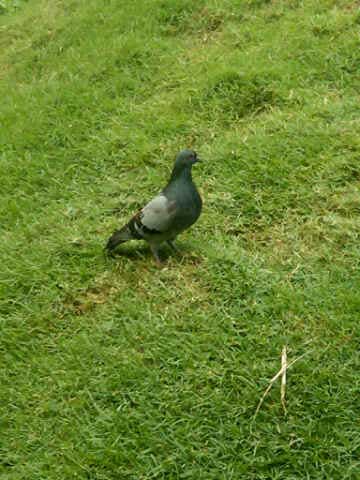
  1.  go to Media>>Pictures and choose the picture you want. For example, I found this picture in my gallery. If I want to use this dove as my wallpaper, setting it as it is, is not that attractive, in my opinion. I need to recompose it


  2. What I need to do is just tap on my Blackberry Storm or Blackberry menu and select Zoom In and repeat until certain level and move it around so it can fit nicely on the front page.


  3. After that press Blackberry menu, and choose Set As Wallpaper, there is also option Set As Caller ID   for picture profile in your contact.


  4. and here is the result.  Looks much nicer :)


    Happy trying :) remember don't go bigger than its resolution, or the picture will look awful

Wednesday, June 9, 2010

Just Ringtones

Share

while cleaning up my bookmarks, I found one old bookmark I made last year that provides sound files from Nexus One. So I thought I will share it here. Below are the links:

Enjoy :) 
This is the link to the original post here/